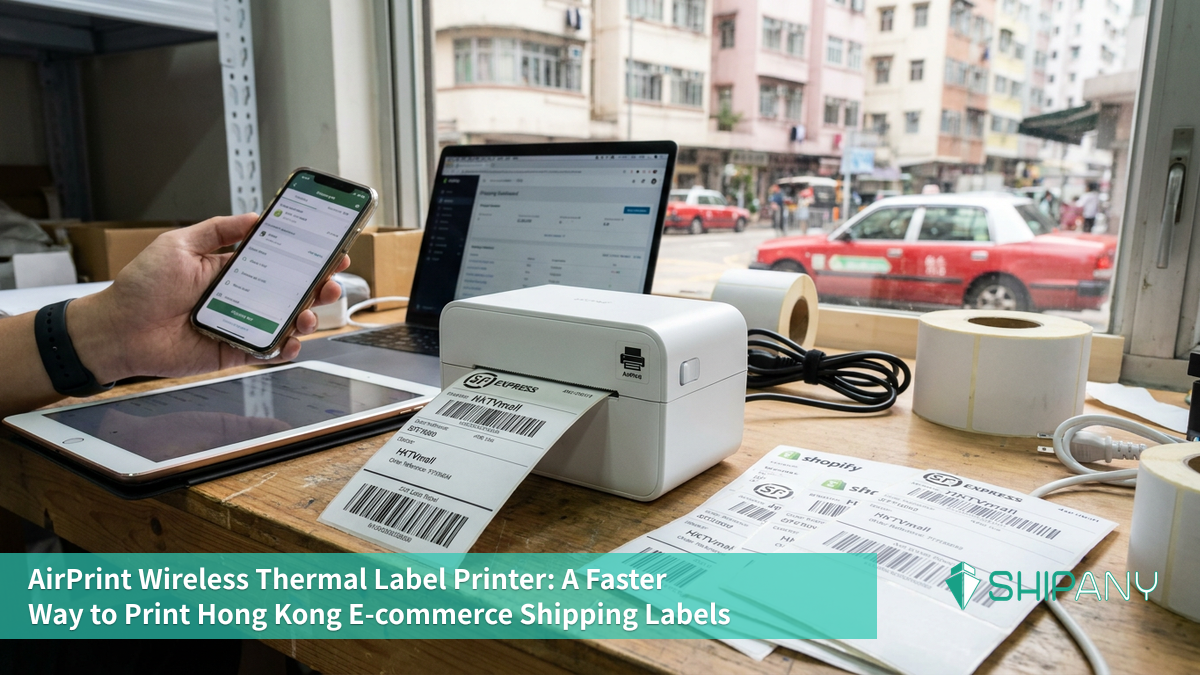
A ShipAny AirPrint wireless thermal label printer can make Hong Kong order fulfilment easier by printing shipping labels without ink cartridges or a routine Bluetooth connection. For DTC sellers preparing SF Express parcels, Shopify orders or HKTVmall shipments, it can help move label printing from a stop-start desk task into a quicker part of the packing workflow—provided the printer, device and label format are set up for the job.
This guide explains how wireless printing and direct thermal labels address common fulfilment snags, what to check when using iOS, Mac, Android or Windows, and how to keep courier and marketplace labels legible and correctly sized. It also covers practical steps for bringing label printing into a ShipAny shipping workflow, from preparing a waybill to checking the parcel before pickup.
How can wireless label printing reduce fulfilment delays?
Wireless printing lets a seller send a label from a compatible device without first moving a file to a computer connected by cable. That can be useful in a Hong Kong packing area where orders are checked on an iPhone or iPad, labels are printed at a bench, and parcels are staged for an SF Express pickup. Less handling between order screen and printer means fewer chances to print the wrong label or leave a parcel waiting while someone finds a cable.
Wireless does not mean that every device and printer will connect automatically. Confirm the supported connection method and setup instructions for the ShipAny printer, then keep the printer within reliable range of the network or device it uses. AirPrint is an Apple printing feature; Android and Windows workflows may use their supported wireless printing route or the printer’s software. A stable connection, powered printer and correctly loaded label roll matter as much as removing a cable.
How does an ink-free thermal printer help with daily packing?
A direct thermal label printer creates an image on heat-sensitive label stock, so there are no ink cartridges or toner to replace. For a small DTC team packing orders after the day’s sales come in, that removes one recurring supply to monitor and avoids discovering an empty cartridge just as courier labels need to be printed. Load the appropriate thermal labels, print the waybill, and keep spare rolls near the packing station.
Thermal labels still need suitable handling. Store rolls away from excess heat, direct sunlight and damp conditions, and check that printed barcodes remain clear before attaching a label to a parcel. Make sure the adhesive is secure on the package surface and that tape, folds or seams do not cover the barcode or delivery details. If a label becomes faint or smudged, reprint it rather than sending a parcel with a barcode that may be difficult to scan.
How do I make courier and marketplace labels fit correctly?
Choose the label size and print settings that match the actual waybill generated for the shipment; a wireless printer cannot correct a mismatched template by itself. SF Express labels and shipping documents generated for Shopify or HKTVmall orders may have different layouts or printing instructions. Before a busy dispatch, check the downloaded file, the required paper size, orientation and scaling options, and whether the label is intended for a standard label roll or a full sheet.
Print a test label and inspect the whole result: recipient and sender details, tracking or waybill number, barcode, and any service information must be visible and legible. In the print dialog, avoid settings such as “fit to page” if they shrink a barcode or shift important content into the margins; use the scale and paper settings specified by the label source. If a marketplace or courier provides a particular label file, print that file rather than rebuilding its layout in a design application. Keep the parcel label flat and easy to scan, and follow any separate document instructions for the shipment.
How can I print labels from iOS, Mac, Android and Windows?
A ShipAny AirPrint wireless thermal label printer is designed to support common seller devices across iOS, Mac, Android and Windows, but the exact setup depends on the device, connection and printing method. On iPhone or iPad, use AirPrint where the printer and file workflow support it. On a Mac, select the configured printer in the print dialog. Android and Windows users should follow the printer’s supported wireless setup and driver or app instructions rather than assuming Apple AirPrint applies to those systems.
For Shopify orders, generate or download the shipping label through the store’s established shipping workflow, then open it on the device used at the packing station and verify its dimensions in the print preview. For HKTVmall fulfilment, use the platform’s shipping information and document requirements for the order, and confirm that the output is suitable for the printer’s label stock. A short test using each device your team actually relies on can uncover permission, network or scaling issues before several parcels are waiting to go out.
How can ShipAny fit label printing into Hong Kong fulfilment?
ShipAny can help bring shipment preparation and label printing into a more organised workflow: sellers can arrange shipping information and waybills through their shipping process, then print the resulting label at the packing station. Rather than treating the printer as a substitute for courier booking, use it as the final physical step after the shipment details and service are confirmed. For local delivery needs, sellers can review Hong Kong courier and pickup services and choose an option suited to the parcel and fulfilment plan.
If orders are being prepared across multiple sales channels, make a repeatable handoff: confirm the order and recipient details, select the shipment service, generate the correct waybill, print at the matching size, and scan-check the label before sealing or staging the parcel. ShipAny’s e-commerce delivery service brings together shipping tasks such as quotes, waybills, pickup and tracking. That can reduce manual re-entry around fulfilment, while the printer handles the practical job of producing a clear label.
FAQ
Can I print an SF Express waybill with a wireless thermal label printer?
You can print an SF Express waybill if the label file, printer and label stock are compatible. Check the required paper size and print settings, then inspect the barcode and delivery details on a test print before dispatch.
Does AirPrint work with Android and Windows?
AirPrint is Apple’s printing feature for supported Apple devices, so it is not the Android or Windows printing method. The ShipAny wireless thermal printer supports workflows across iOS, Mac, Android and Windows; use the setup instructions and connection method intended for each device.
Do thermal label printers need ink?
A direct thermal label printer prints using heat-sensitive label stock and does not require ink cartridges or toner. Keep the correct thermal labels available and store them away from heat and sunlight to help preserve print quality.
Can I print Shopify and HKTVmall shipping labels on the same printer?
A thermal printer can be used for labels from both Shopify and HKTVmall when each label’s format and dimensions are supported. Check the platform’s document instructions and the print preview for every label type, since layouts and scaling requirements may differ.
Conclusion
For Hong Kong DTC sellers, a wireless thermal label printer can make packing less dependent on cables and ink supplies, while keeping courier and marketplace labels close to the order workflow. Confirm the connection and label dimensions, test the documents you use for SF Express, Shopify and HKTVmall, and inspect each print before it leaves the packing bench.
With those checks in place, printing becomes a reliable final step in preparing parcels for courier pickup—not another last-minute fulfilment hurdle. After understanding the printer specifications and confirming device compatibility, you can visit ShipAny AirPrint Wireless Thermal Label Printer to view product details and make a purchase.